
How to Export Music to USB for DJing
-
 Jun 22, 2026
 -
 By
Learn How To Be a DJ
By
Learn How To Be a DJ -
 How To Be a DJ
 -
 8 min read
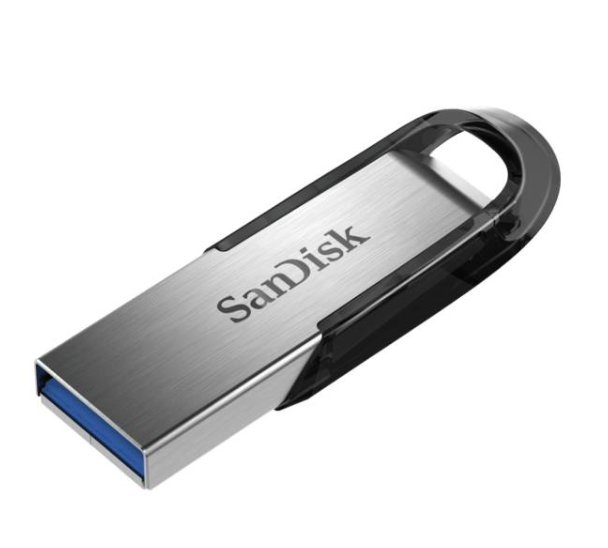
How to Export Music to USB: The Complete DJ Guide for Beginners
One of the most important skills every DJ needs to learn is how to export music to USB correctly.
Whether you are preparing for your first club gig, a wedding, a mobile DJ booking or simply practising at home, knowing how to export music to USB ensures your tracks are organised, analysed and ready to perform.
Many beginner DJs assume they can simply drag MP3 files onto a memory stick and start DJing. While that may work in some situations, modern DJ equipment from Pioneer DJ, AlphaTheta, Denon DJ and other manufacturers is designed to work best when music is properly exported using dedicated DJ software.
In this guide, you will learn exactly how to export music to USB, which software to use, how to prepare playlists, common mistakes to avoid and professional tips used by experienced DJs around the world.
By the end of this article, you will be able to confidently prepare a USB drive for club performances, weddings, parties and professional DJ gigs.
Quick Answer: How to Export Music to USB
To export music to a USB drive for DJing:
- Format your USB drive correctly.
- Import your music into DJ software.
- Analyse your tracks.
- Set cue points and beat grids.
- Create playlists.
- Insert your USB drive.
- Export playlists to the USB using your DJ software.
- Safely eject the USB.
- Test the USB before your performance.
Most professional DJs use Rekordbox to export music to USB for use on Pioneer DJ CDJs and club equipment.
What Does Exporting Music to USB Mean?
Exporting music to USB means preparing tracks through DJ software so that:
- Waveforms appear correctly.
- Cue points are saved.
- Loops are stored.
- BPM information is analysed.
- Playlists are organised.
- Tracks load quickly.
This process creates a performance-ready DJ USB rather than a simple storage device.
Think of your USB as your digital record crate.
Professional DJs spend time preparing their USBs because preparation often makes the difference between a smooth set and a stressful performance.
Why Is Exporting Music Properly Important?
Better Organisation
A properly prepared USB allows you to:
- Find songs quickly
- Sort by genre
- Sort by BPM
- Sort by key
- Sort by playlist
Faster Track Loading
Analysed tracks load almost instantly on modern DJ players.
Reliable Club Performance
Most clubs use Pioneer DJ CDJ players.
A Rekordbox exported USB is often the industry standard.
Saved Cue Points
Your hot cues, memory cues and loops transfer with the track.
This allows faster mixing and more creative performances.
What Equipment Do You Need?
Essential Equipment
| Equipment | Purpose |
|---|---|
| Computer | Music preparation |
| USB Drive | Store DJ library |
| DJ Software | Export tracks |
| Music Collection | Audio files |
| Internet Connection | Software updates |
Recommended USB Specifications
| Feature | Recommendation |
| Capacity | 64GB to 256GB |
| USB Type | USB 3.0 or higher |
| Brand | SanDisk, Samsung, Kingston |
| Speed | High speed read/write |
| Format | FAT32 or exFAT |
For most DJs, a 128GB USB drive offers an excellent balance of capacity and reliability.
Which DJ Software Can Export Music to USB?
Rekordbox
Most popular for:
- Clubs
- CDJs
- XDJ systems
- Professional DJs
Advantages:
- Industry standard
- Excellent playlist management
- Club compatibility
Engine DJ
Used for:
- Denon DJ systems
- Prime series players
Advantages:
- Fast analysis
- Cloud integration
- Standalone workflow
Serato DJ Pro
Traditionally designed for:
- Controllers
- DVS systems
- Laptop DJs
Some hardware now supports USB exports through compatible workflows.
How to Format a USB Drive for DJing
Step 1: Backup Existing Files
Formatting erases all data.
Always back up important files first.
Step 2: Choose the Correct Format
FAT32
Pros:
- Maximum compatibility
- Works on almost all DJ equipment
Cons:
- 4GB file size limit
exFAT
Pros:
- Supports larger files
- Modern standard
Cons:
- Some older equipment may not support it
Always check your hardware manufacturer’s recommendations.
How to Export Music to USB Using Rekordbox
Step 1: Install Rekordbox
Download the latest version.
Create your Rekordbox account.
Step 2: Import Music
Click:
File → Import
Or drag tracks directly into your collection.
Step 3: Analyse Tracks
Rekordbox analyses:
- BPM
- Key
- Waveform
- Beatgrid
This makes mixing easier later.
Step 4: Create Playlists
Examples:
Wedding Playlist
- First dance
- Party classics
- Slow songs
House Playlist
- Deep house
- Vocal house
- Tech house
Warm Up Playlist
- Lower energy tracks
- Opening music
Good organisation saves huge amounts of time during performances.
Step 5: Add Cue Points
Set:
- Intro points
- Mix in points
- Vocal starts
- Breakdown markers
These become visible on CDJs.
Step 6: Insert USB Drive
Rekordbox will recognise the device.
It appears in the device section.
Step 7: Export Playlists
Drag playlists onto the USB icon.
Or:
Right click playlist → Export to Device
Wait for the transfer to complete.
Step 8: Safely Eject
Never remove the USB while exporting.
Always use:
Eject Device
inside Rekordbox.
How to Export Music to USB Using Engine DJ
Import Your Music
Add tracks to your Engine DJ library.
Analyse Tracks
Allow Engine DJ to analyse BPM and waveforms.
Create Playlists
Organise tracks by:
- Genre
- Event type
- Energy level
Export to USB
Select playlists.
Choose:
Export → USB Device
Wait for completion.
Safely eject.
Best DJ USB Folder Structure
Professional DJs often organise playlists like this:
Weddings
- First Dance
- Dinner Music
- Party Hits
- Last Dance
House
- Warm Up
- Peak Time
- Closing
Commercial
- Pop
- Dance
- Classics
Emergency Tracks
Always have:
- Crowd favourites
- Requests
- Different genres
You never know what a crowd will ask for.
How Many Songs Should You Put on a DJ USB?
This depends on your type of DJing.
| DJ Type | Recommended Tracks |
| Beginner | 300 to 500 |
| Mobile DJ | 2,000 to 10,000 |
| Club DJ | 500 to 2,000 |
| Wedding DJ | 5,000+ |
Quality matters more than quantity.
Many experienced DJs perform amazing sets with fewer than 500 carefully selected tracks.
Common Problems When Exporting Music to USB
Tracks Missing
Usually caused by:
- Deleted files
- Moved folders
- Broken file paths
Keep your music library organised.
USB Not Recognised
Possible causes:
- Incorrect formatting
- Faulty USB drive
- Unsupported file system
Missing Cue Points
Usually caused by:
- Exporting incorrectly
- Not saving changes
Always verify cues before exporting.
Slow Loading
May be caused by:
- Cheap USB drives
- Old USB technology
- Large fragmented libraries
Use quality USB drives.
Comparison: Drag and Drop vs Proper Export
| Feature | Drag and Drop | DJ Software Export |
| Cue Points | No | Yes |
| Waveforms | No | Yes |
| BPM Analysis | No | Yes |
| Playlists | Limited | Yes |
| Club Ready | No | Yes |
| Professional Use | No | Yes |
Professional export always wins.
Pros and Cons of DJ USB Drives
Pros
- Portable
- Reliable
- Club standard
- No internet required
- Fast loading
- Easy backup
Cons
- Can be lost
- Can fail unexpectedly
- Requires preparation
- Limited storage compared to laptops
Most professional DJs carry at least two identical USB backups.
Common Mistakes Beginners Make
Using Cheap USB Drives
Reliability matters.
A failed USB can ruin a gig.
Not Backing Up Music
Always maintain:
- Primary USB
- Backup USB
- Cloud backup
Exporting at the Last Minute
Prepare days before a performance.
Not Testing the USB
Always test before leaving home.
Poor Playlist Organisation
A messy library creates stress during a performance.
Expert DJ Tips for Exporting Music to USB
Carry Two USB Drives
Many professional DJs carry:
- Main USB
- Backup USB
Colour Code Cue Points
Different colours can indicate:
- Mix points
- Vocals
- Breakdowns
- Drops
Update Your Library Regularly
Avoid huge updates before gigs.
Small regular updates are easier.
Create Emergency Playlists
Include:
- Singalong tracks
- Classics
- Floor fillers
Check Club Equipment Compatibility
Contact venues beforehand.
Ask:
- CDJ model
- Mixer model
- Supported USB format
Preparation prevents problems.
Real World Example
When playing club gigs, I never rely on a single USB.
I always carry:
- Two identical USB drives
- One cloud backup
- One laptop backup
On more than one occasion, I have seen DJs arrive with a single USB only to discover it was corrupted.
A simple backup strategy can save an entire performance.
Frequently Asked Questions
How do I export music to USB for Pioneer DJ CDJs?
Use Rekordbox to analyse tracks, create playlists and export them directly to a formatted USB drive.
Can I drag MP3 files directly onto a USB?
Yes, but you will lose many DJ features including waveforms, cue points and playlist organisation.
What USB format is best for DJing?
FAT32 remains the most widely supported format across DJ equipment.
How much storage do I need for DJing?
Most DJs are comfortable using 64GB to 256GB USB drives.
Can I use exFAT for DJing?
Yes, but check compatibility with your equipment first.
Why are my cue points missing?
They may not have been saved before exporting.
Do clubs provide USB drives?
No. DJs normally bring their own.
Should I carry a backup USB?
Absolutely. Every professional DJ should carry at least one backup.
Can I export from Serato?
Yes, depending on your workflow and hardware compatibility.
How often should I update my USB?
Regularly, ideally after adding new music or playlists.
Can I use one USB for multiple genres?
Yes. Good playlist organisation makes this easy.
What is the best DJ software for USB exports?
Rekordbox is currently the most common choice for club DJs.
Learning how to export music to USB is one of the most valuable technical skills a DJ can develop.
A properly prepared USB allows you to organise your music, preserve cue points, load tracks faster and perform confidently on professional equipment.
Take time to analyse your tracks, organise playlists and maintain reliable backups. These habits will help you avoid technical problems and allow you to focus on what matters most — delivering a great performance.
As your DJ journey progresses, continue building your music library, refining your playlists and developing professional workflows.
For more beginner friendly DJ tutorials, equipment guides and practical DJ training resources, visit https://www.learnhowtobeadj.com/ and continue building your DJ skills with confidence.
Want The Complete Roadmap To Become A DJ?
Step by Step to mix, play and launch your DJ journey with confidence.
- Beginner-friendly
- Easy to follow
- Packed with practical tips
 GET YOUR COPY NOW